Framer how-to ·
How to Build a Portfolio Website in Framer, Step by Step
A step-by-step guide to building a portfolio website in Framer: plan your projects, remix a free template, replace the CMS content, set SEO and publish.
Short answer: Pick 6 to 10 projects, remix a free Framer portfolio template, swap the template’s text and color styles for your own, replace the demo CMS items with your projects, set a title and description for each page, then publish to a free Framer subdomain. Connect a custom domain once you upgrade to a paid plan. A focused first version takes a weekend.
I have published about 22 free Framer templates. The single biggest time saver I know is boring: decide what goes on the site before you open Framer. So that is where this guide starts.
Step 1: Decide what goes on the site
Open a plain document and write three lists.
- Projects. Pick 6 to 10. More than that and visitors skim. For each one, note the client, year, your role and two to four images or one video.
- Pages. A portfolio needs Home, Work, a project detail page, About and Contact. Anything else is optional.
- One sentence about you. What you do and who you do it for. This becomes your home page line and your meta description.
Having this ready saves hours. You will not stop halfway through the CMS to hunt for images.
Step 2: Choose a template that fits your work
Starting from a template is faster than a blank canvas, and Framer’s template help article explains that once a template is copied, you can edit its content, styling, layout and components like any other project.
Match the template to your content, not to the screenshot you like most. Three of mine, each built for a different kind of portfolio:
| Template | Pick it if | Notable detail |
|---|---|---|
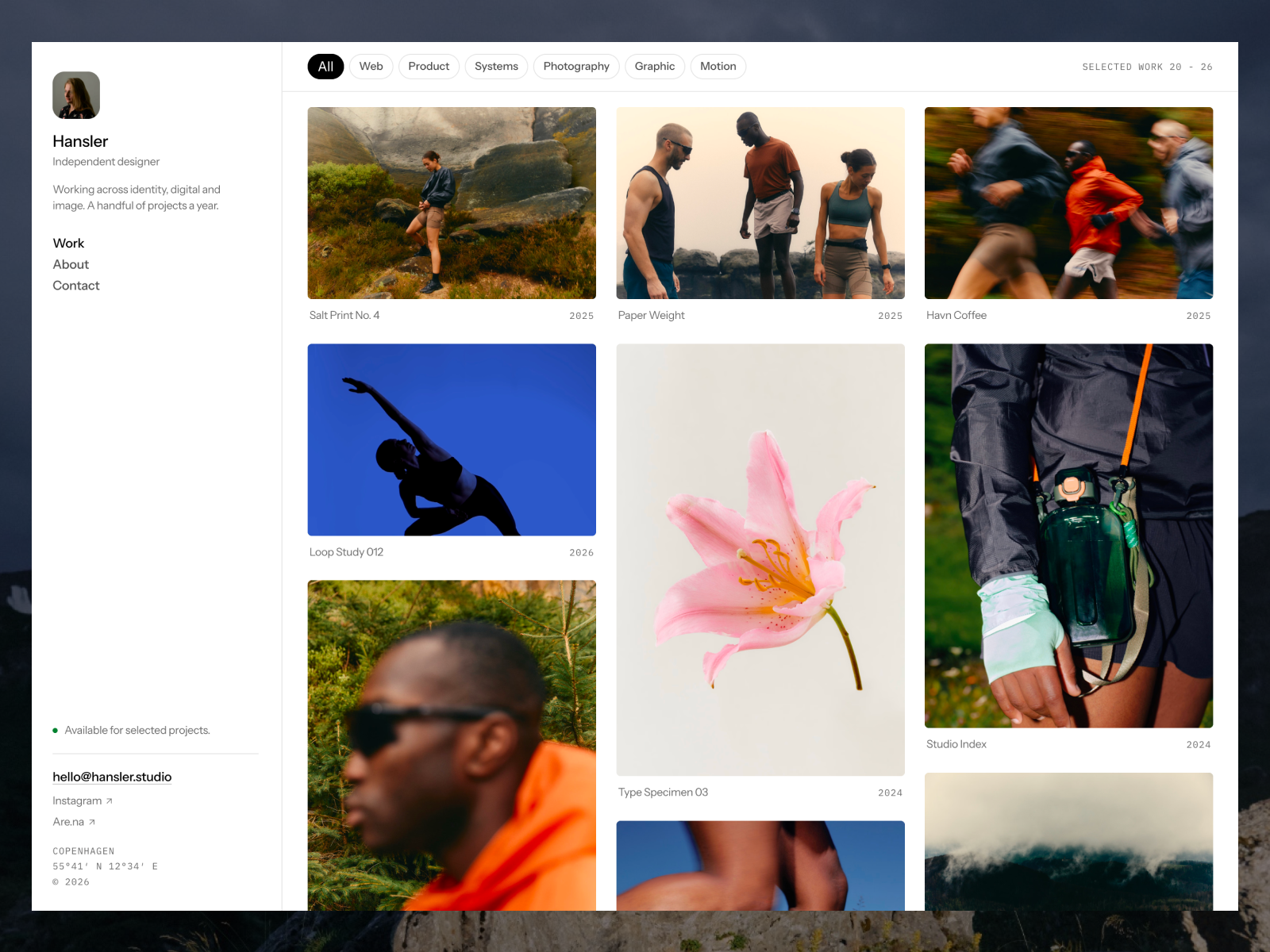
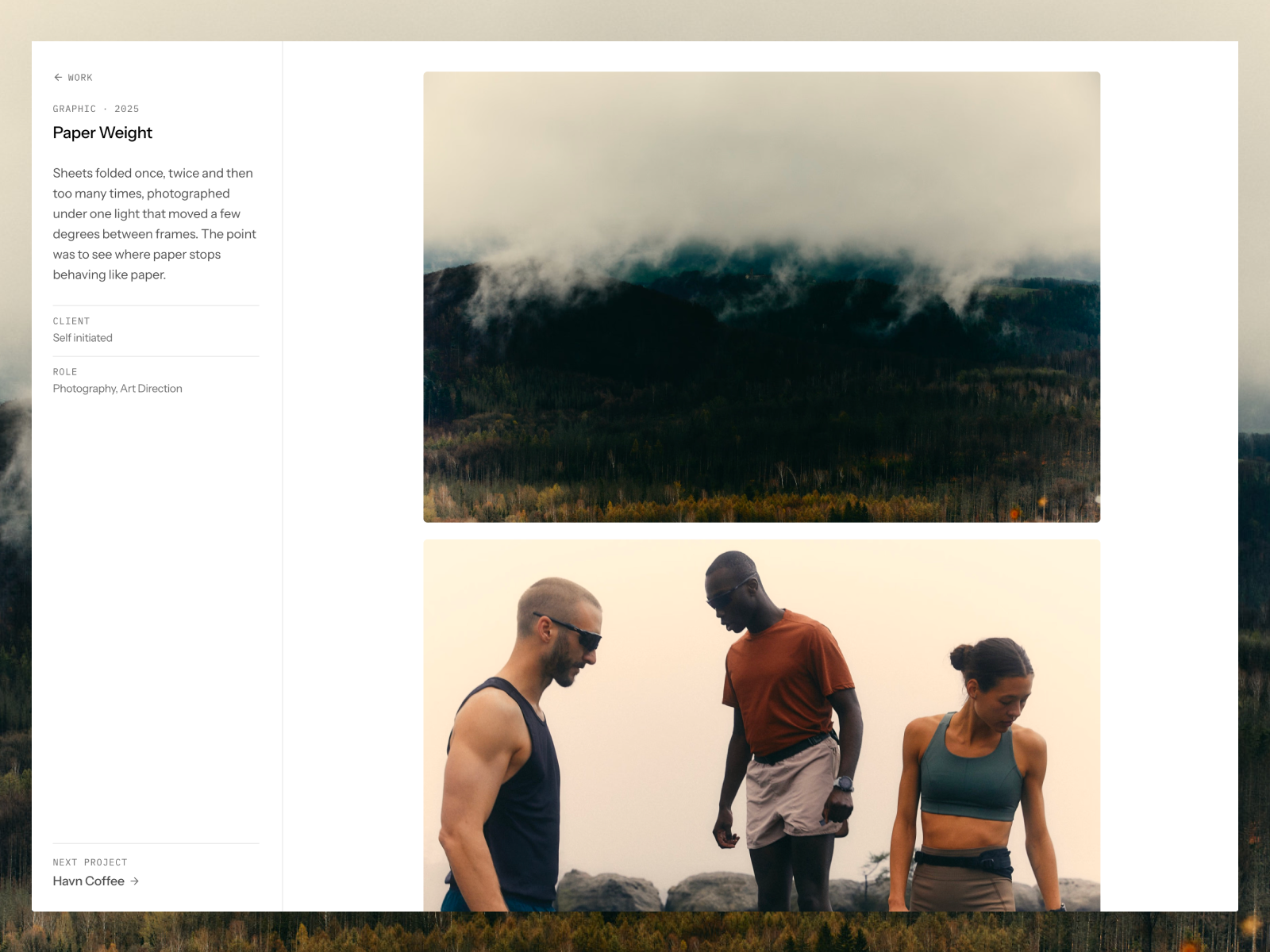
| Hansler | You have many strong single images | The feed loops over a Media collection, so one project can fill several tiles |
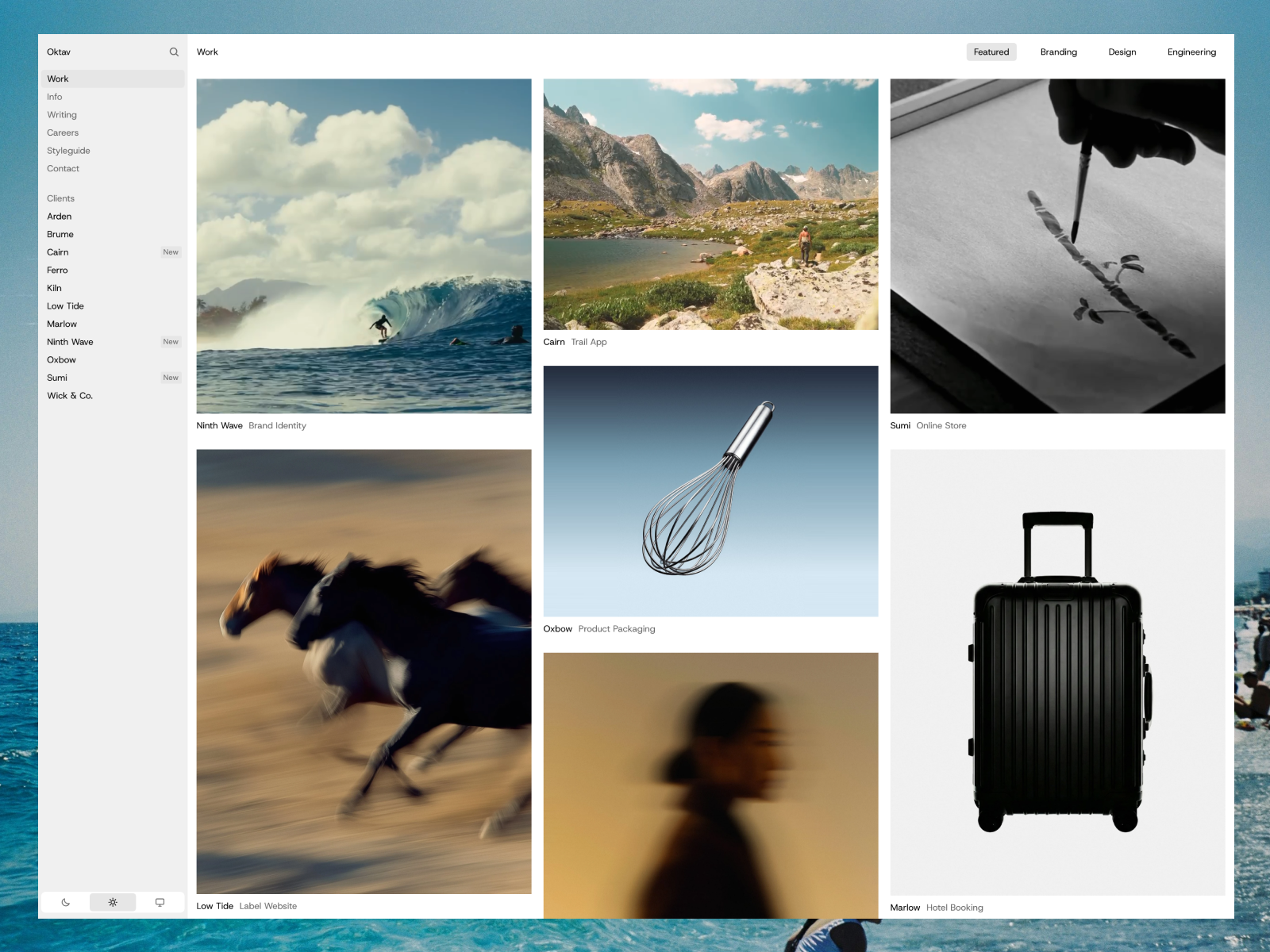
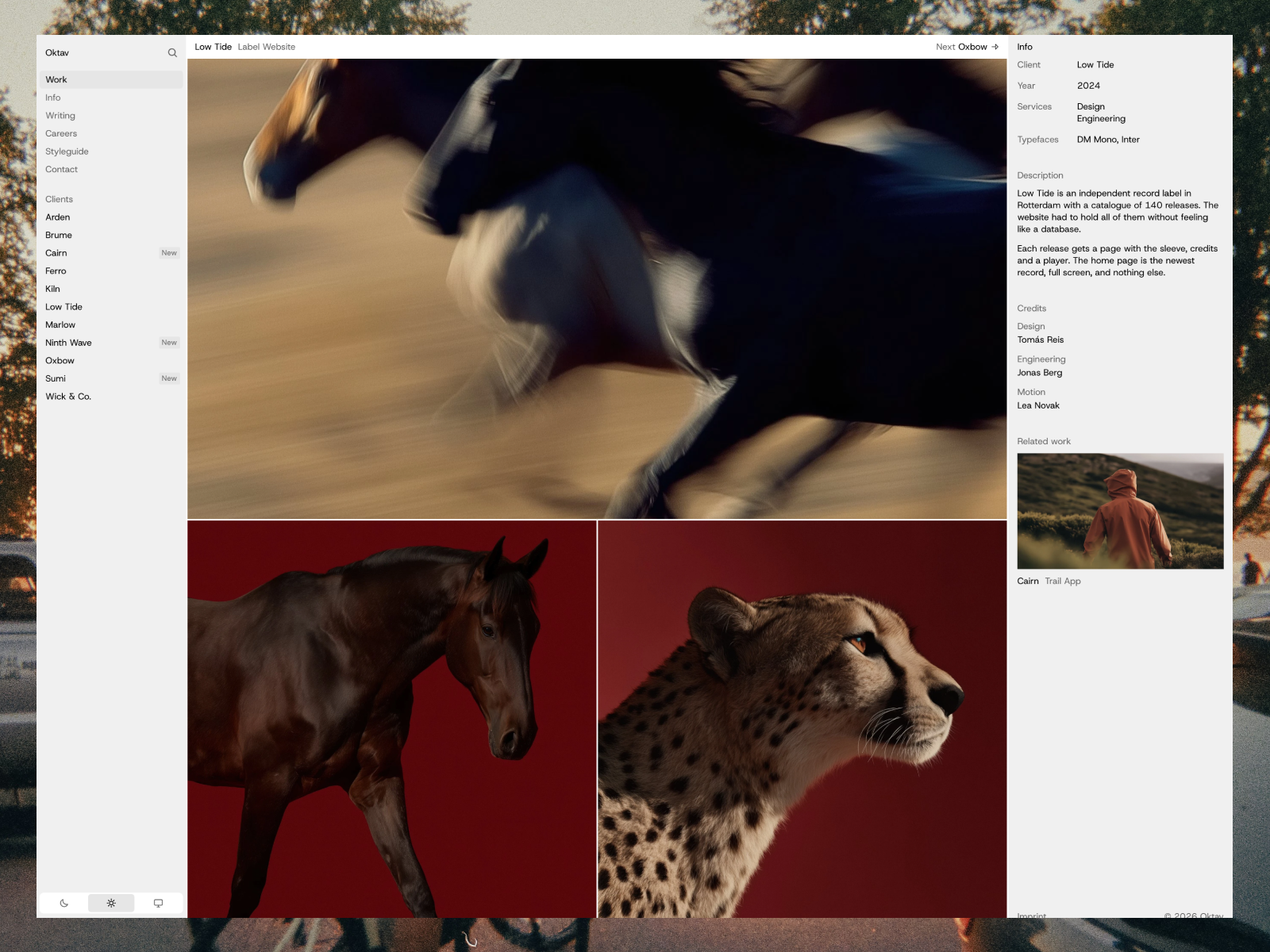
| Oktav | You run a studio with many clients | A sidebar client index with built-in search and a masonry work grid |
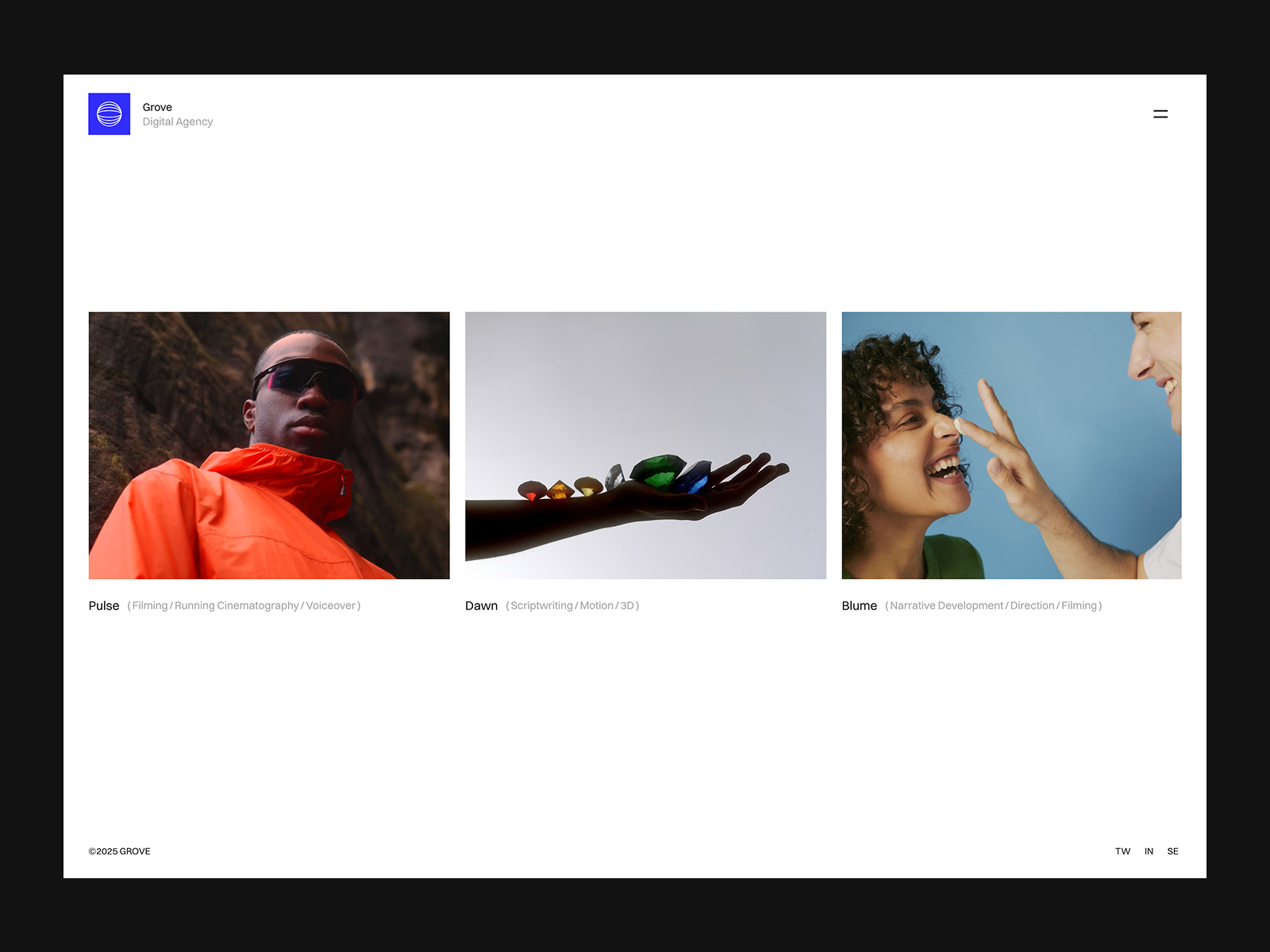
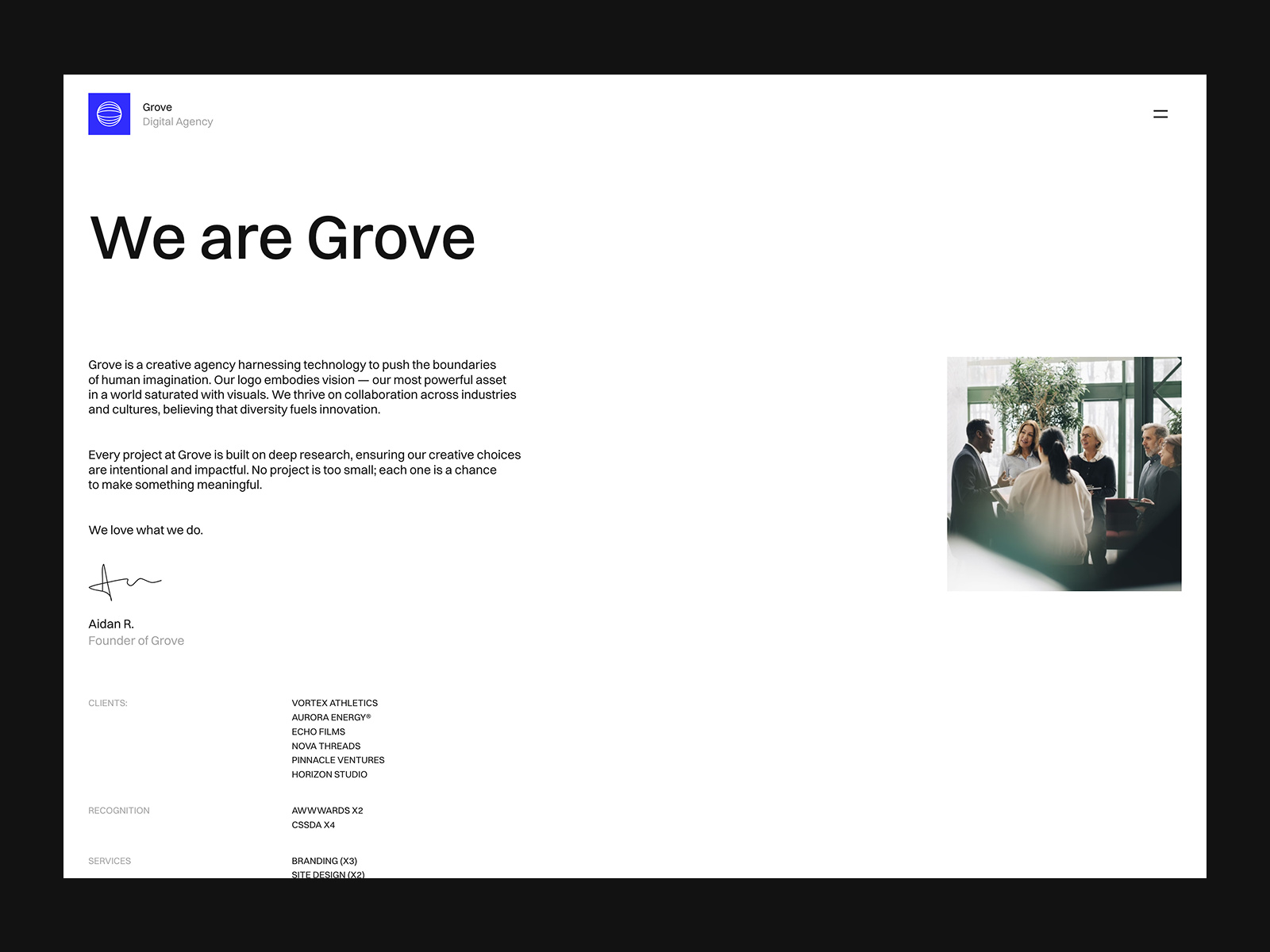
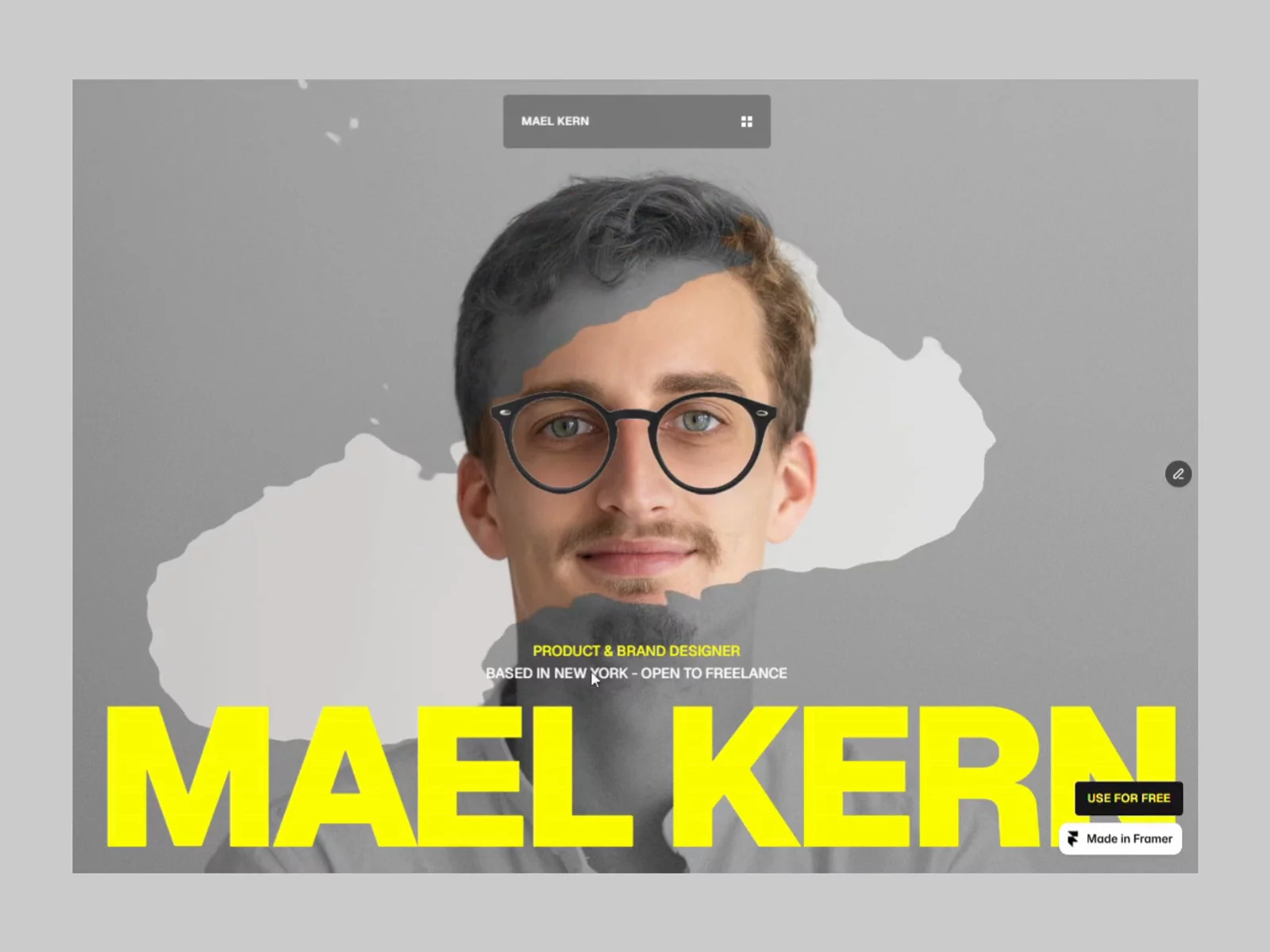
| Grove | Your brand can carry bold motion | Smooth scroll, infinite scroll and distortion effects |
Before you choose, check how many CMS collections the template uses. Framer Basic includes 2, according to the pricing page. Hansler uses 3 and Oktav uses 4, so plan to upgrade or remove a collection. My Framer pricing guide has the full list.
Step 3: Remix the template
On the template’s Marketplace page, click the free button. Framer opens the project and adds it to your account. For example, here are the listings for Hansler, Oktav and Grove.
Rename the project right away. “Portfolio 2026” is better than the template name when you have three remixes open.
Step 4: Make it yours with styles, not by hand
Do not click through every text layer. Change the styles instead.
- Open the color styles and replace the template colors with your palette. Every layer that uses a style updates at once.
- Open the text styles and swap the fonts. Change the heading style first, then body text.
- Replace the logo or wordmark in the navigation and footer.
Some newer templates make this even faster. Oktav includes two built-in Framer Skills that work inside Framer AI. According to its listing, /customize walks you through replacing the name, emails, projects, colors, fonts and SEO, and /design-system keeps new sections in the template’s style.
Step 5: Replace the CMS content
Your projects live in the CMS, not on the page. Open the CMS panel and edit the demo items.
- Start by editing one existing item rather than creating a new one. You keep all the fields and see how they map to the page.
- Fill every field you can. Templates like Hansler hide empty project fields on their own, according to the listing, but other templates may not.
- Delete the remaining demo items only after your own items are in.
- Write alt text for every image. It helps visitors who use screen readers and it helps search engines understand the image.
If you want to build your own project collection from scratch, my Framer CMS tutorial walks through it.
Step 6: Check every breakpoint
Framer sites have separate desktop, tablet and phone breakpoints. All three templates above list layouts for each one. Your content will still break things the demo did not. A long client name, a portrait image in a landscape slot, a two-line button.
Go through each page at each breakpoint. Fix anything that overlaps or wraps badly. Then open the preview on your real phone, because the canvas does not show everything.
Step 7: Set up SEO before you publish
Every page needs a unique title and meta description. For CMS detail pages, set them once and bind them to your project fields, so each project gets its own title.
A simple pattern that works:
- Home: “Your Name, Product Designer in City.”
- Work: “Selected work by Your Name.”
- Project pages: “Project name for Client, Your Name.”
Add a social image for the home page, too. It is what people see when you share the link.
Step 8: Publish
Click Publish in the top-right corner. Framer’s domain help article explains that your site goes live on a Framer subdomain first, and that you can claim a free custom subdomain on framer.website, framer.photos, framer.media or framer.wiki.
Use the Update button each time you make changes.
Step 9: Connect your own domain
When you are happy with the site, upgrade to a paid plan and connect your domain in Site Settings, under Hosting and then Domains. I cover the DNS records and the common mistakes in how to connect a custom domain to a Framer site.
Mistakes I see most often
- Publishing with demo content left in. Search the CMS for the template’s placeholder names before you publish. Compass’s listing, for example, warns that its client logos, names and images are placeholders.
- Uploading huge images and videos. Framer’s video article says uploaded videos are served unaltered. Export at web sizes first.
- Skipping the 404 page. Most templates include one. Change its text so it sends people to your Work page.
- Leaving the contact form untested. Send yourself a test message from the live site, not just the preview.
A realistic timeline
| Task | Time |
|---|---|
| Plan projects and gather images | 2 to 4 hours |
| Remix template and change styles | 1 to 2 hours |
| Replace CMS content for 8 projects | 3 to 5 hours |
| Breakpoints, SEO and publish | 2 hours |
These are my own estimates from setting up templates, not measured averages. The planning step is the one people skip, and it is the one that saves the most time.
If you would rather hand this off, the Customization page has setup packages. Otherwise, browse the Portfolio templates and start with Step 1.
FAQ
Can I build a portfolio in Framer for free?
Yes. You can remix a free template and publish on a free Framer subdomain. A custom domain needs a paid plan.
How long does it take to build a portfolio in Framer?
With a template and your content ready, a focused first version can be done in a weekend. Writing case studies takes the longest.
Do I need to know code to build a portfolio in Framer?
No. Framer is a visual editor. Changing a template’s text, images, styles and CMS items happens in panels on the canvas, without writing code.
How many projects should a portfolio have?
Six to ten strong projects is a good range. Quality matters more than count, and fewer projects keep the CMS simple.