Framer how-to ·
Framer CMS Tutorial: Build a Portfolio Project Gallery
A Framer CMS tutorial for portfolios: create a Projects collection, build a gallery with a collection list, and make one detail page per project.

Short answer: Create a Projects collection in the Framer CMS, add fields for title, cover, client, year, description and gallery images, then add one item per project. Put a Collection List on your Work page for the gallery, and create a CMS detail page that binds each layer to a field with Set Variable. Every new project then gets its own page automatically.
This is the setup I use in almost every portfolio template I make. It takes about an hour the first time and saves you from ever duplicating a project page again.
How the Framer CMS works, in one paragraph
The Framer Academy puts it simply. A collection is a database for one type of content. Each item in it follows the same structure, and fields are the building blocks of that structure. For a portfolio, the collection is Projects, each item is one project, and the fields are things like Title, Client and Cover. You design a layout once and the CMS fills it.
Before you start: check your plan limit
Framer’s pricing page listed these CMS limits on October 11, 2026:
| Plan | CMS collections | CMS items |
|---|---|---|
| Basic | 2 | 1,000 |
| Pro | 10, expandable to 40 | 2,500, expandable to 40,000 |
A portfolio needs one collection for projects. If you also want a journal, that is two. Basic covers that. A third collection, for categories or team members, pushes you to Pro.
Step 1: Create the Projects collection
Open the CMS panel and create a new collection called Projects. Then add the fields. Here is the field set I recommend for a design portfolio:
| Field | Type | Why |
|---|---|---|
| Title | Text | Project name, used for the page title |
| Slug | Slug | The URL, such as /work/brand-refresh |
| Cover | Image | The tile in the gallery |
| Client | Text | Shown on the card and the detail page |
| Year | Number or text | For sorting and display |
| Role | Text | What you did on the project |
| Summary | Text | One or two sentences for the card |
| Body | Formatted text | The case study |
| Gallery images | Image fields, one per slot | Detail page images |
| Video URL | Text | Optional YouTube, Vimeo or MP4 link |
| Featured | Toggle | Pins projects to the home page |
The Academy lesson notes that you can rename fields, add helper text and mark fields as required from the Edit Fields panel. Mark Title, Slug and Cover as required. That way an unfinished project cannot break the grid.
Step 2: Add your projects
Add one item per project. Fill every field you can, and write alt text for every image.
Keep the order in mind. Framer collection lists can sort by a field, so decide now whether the gallery sorts by Year, by a manual order number, or by the Featured toggle first.
Step 3: Build the gallery with a Collection List
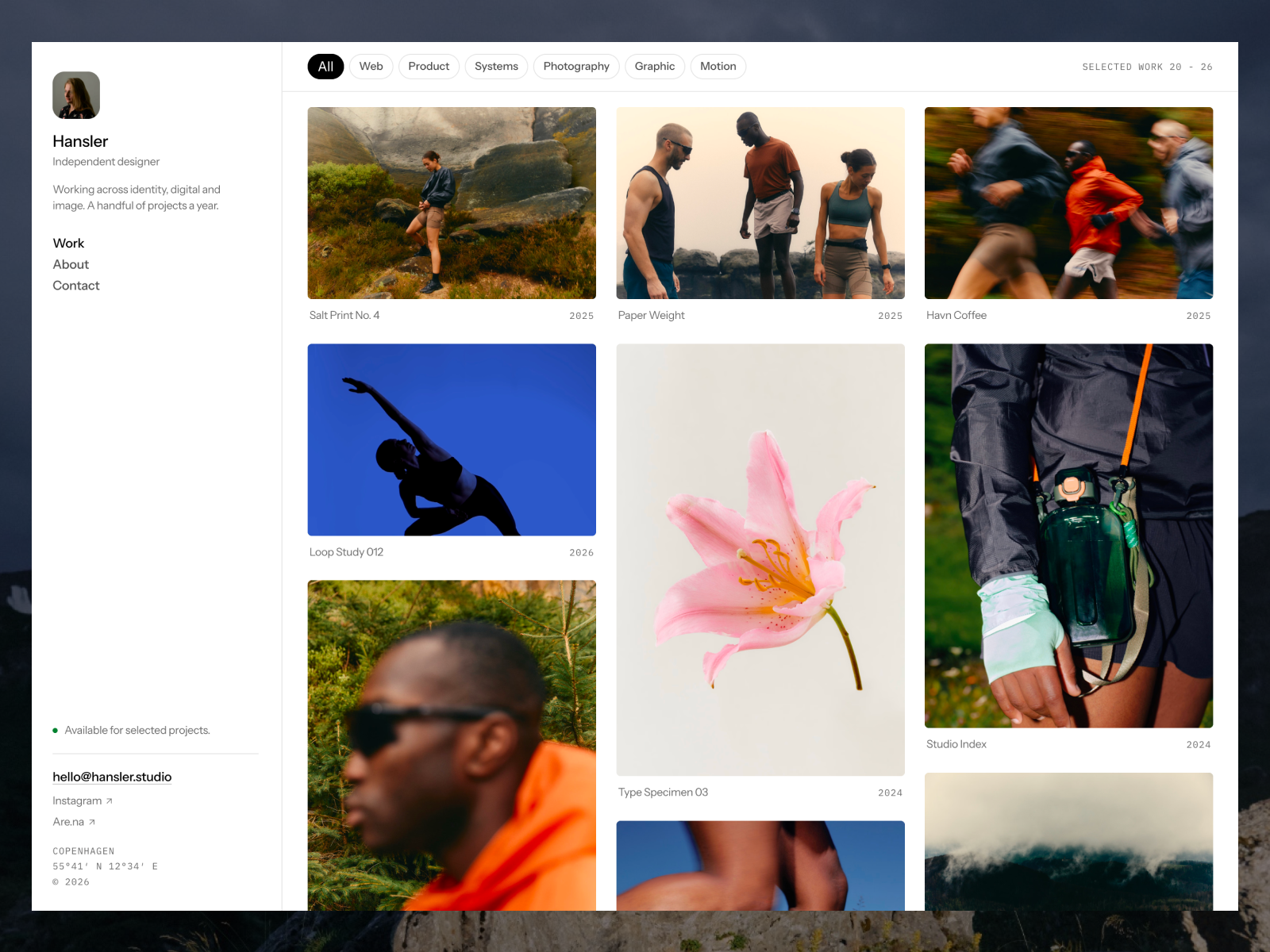
On your Work page, add a Collection List and connect it to Projects. According to the Academy’s collection list lesson, you then design the repeated item once and bind its title, image, link and supporting fields.
For a portfolio gallery:
- Set the list layout to a grid. Two columns on desktop, one on phone is a safe start.
- Inside the item, add an image and bind it to Cover.
- Add text for Title and Client and bind each to its field.
- Link the whole item to the project’s detail page.
- Set sorting, and add a limit if this list sits on the home page.
The same lesson suggests testing with short, long and missing values, then setting up sorting, filtering, pagination and empty states. Do this now. A client name twice as long as the demo one is the most common thing that breaks a card.
Step 4: Create the project detail page
This is where the CMS pays off. The detail page lesson gives the steps:
- Open Pages and choose New CMS Page.
- Select the Projects collection.
- Choose Detail Page.
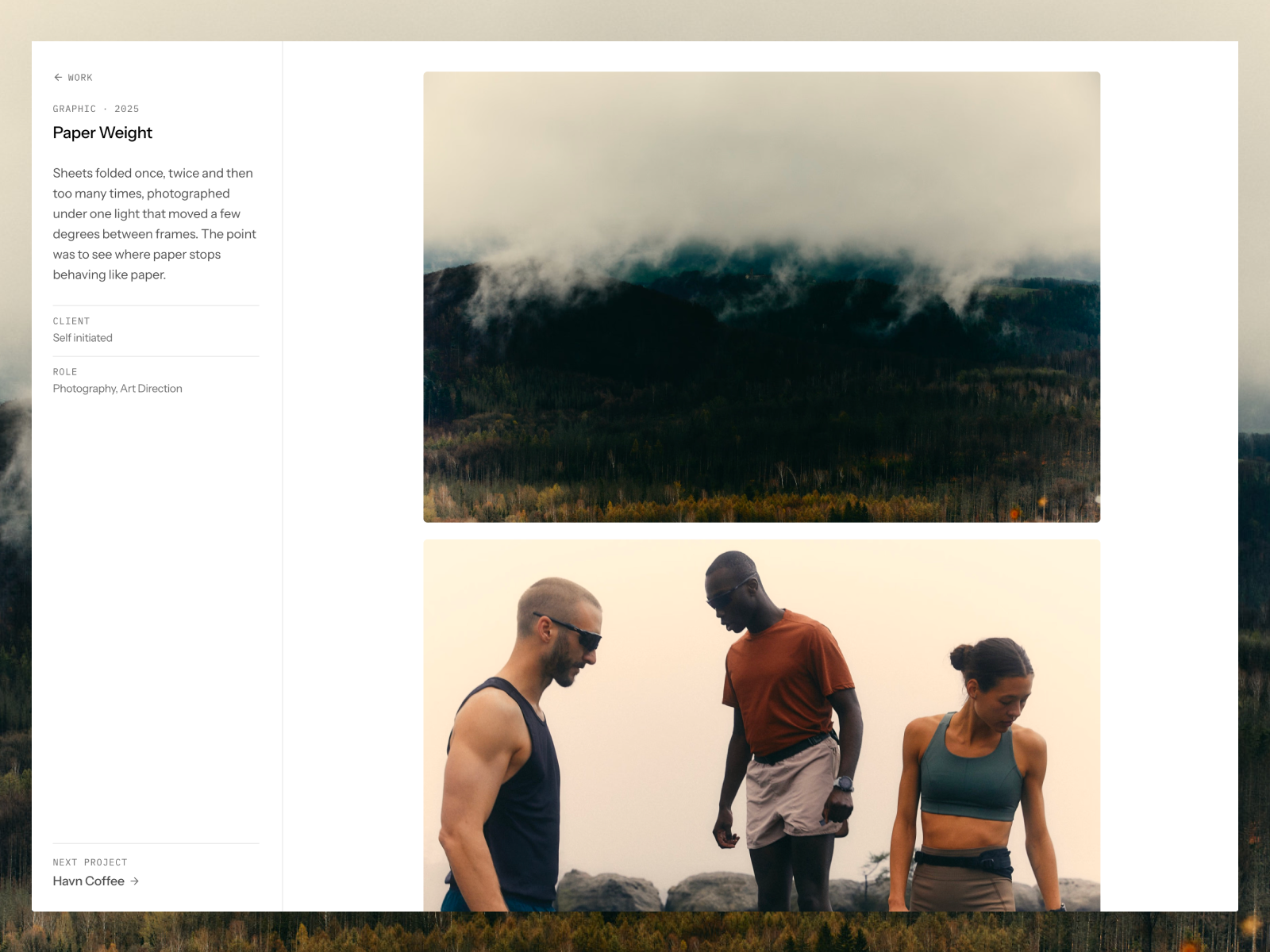
Now design the page once. For each text, image or link, click the plus button next to the property, choose Set Variable, and pick the matching field. Use the item dropdown at the top of the canvas to preview different projects. The layout stays the same while the content changes.
Step 5: Hide what is empty
Not every project has a video or four gallery images. Framer handles this with visibility. The Academy’s CMS pages lesson explains how: set a variable on the element’s Visible property, choose the field, and set it to “is set.” The element then only shows when that field has content.
Use this on the video block, on extra gallery images, and on a “Visit live site” button.
Step 6: Add video to project pages
Framer’s help article on adding video to CMS pages describes two methods:
- Hosted video. Create a plain text Video URL field, paste a YouTube, Vimeo or MP4 link per project, and bind the component’s URL to that field.
- Uploaded video. Add a File field, upload the MP4 in the CMS, and bind a Video component’s source to it.
Framer’s video optimization article adds a useful warning: uploaded videos are served unaltered, so a 4K file plays at full resolution even on a phone. Compress first, or use YouTube or Vimeo for adaptive quality.
Step 7: Add previous and next links
Visitors who like one project usually want the next. The detail page lesson suggests adding previous and next links bound to the neighboring items’ titles, so people can move through your work without going back to the index.
Seeing it done in real templates
If you want to study a finished setup before building your own, these free templates show three different CMS structures:
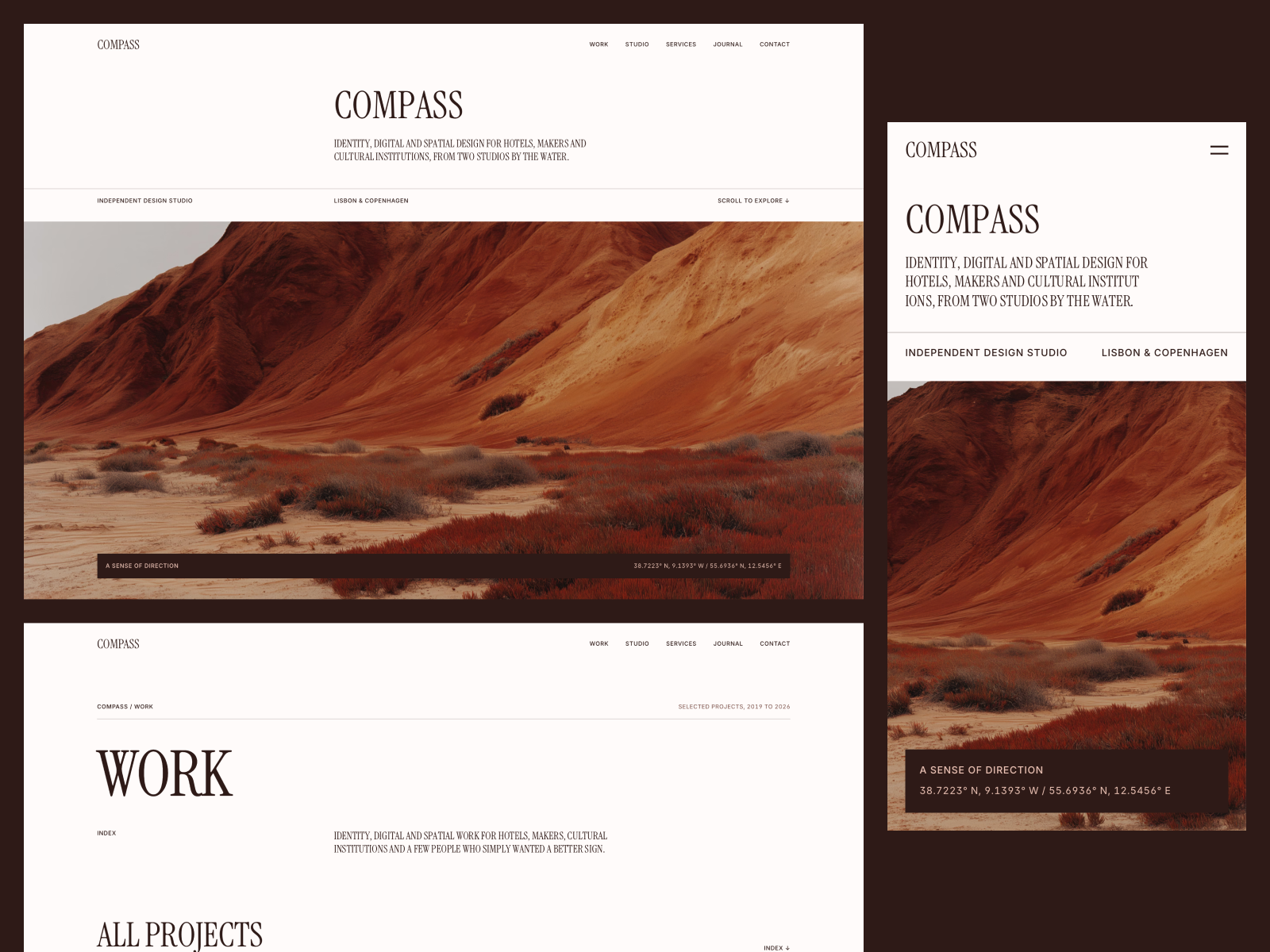
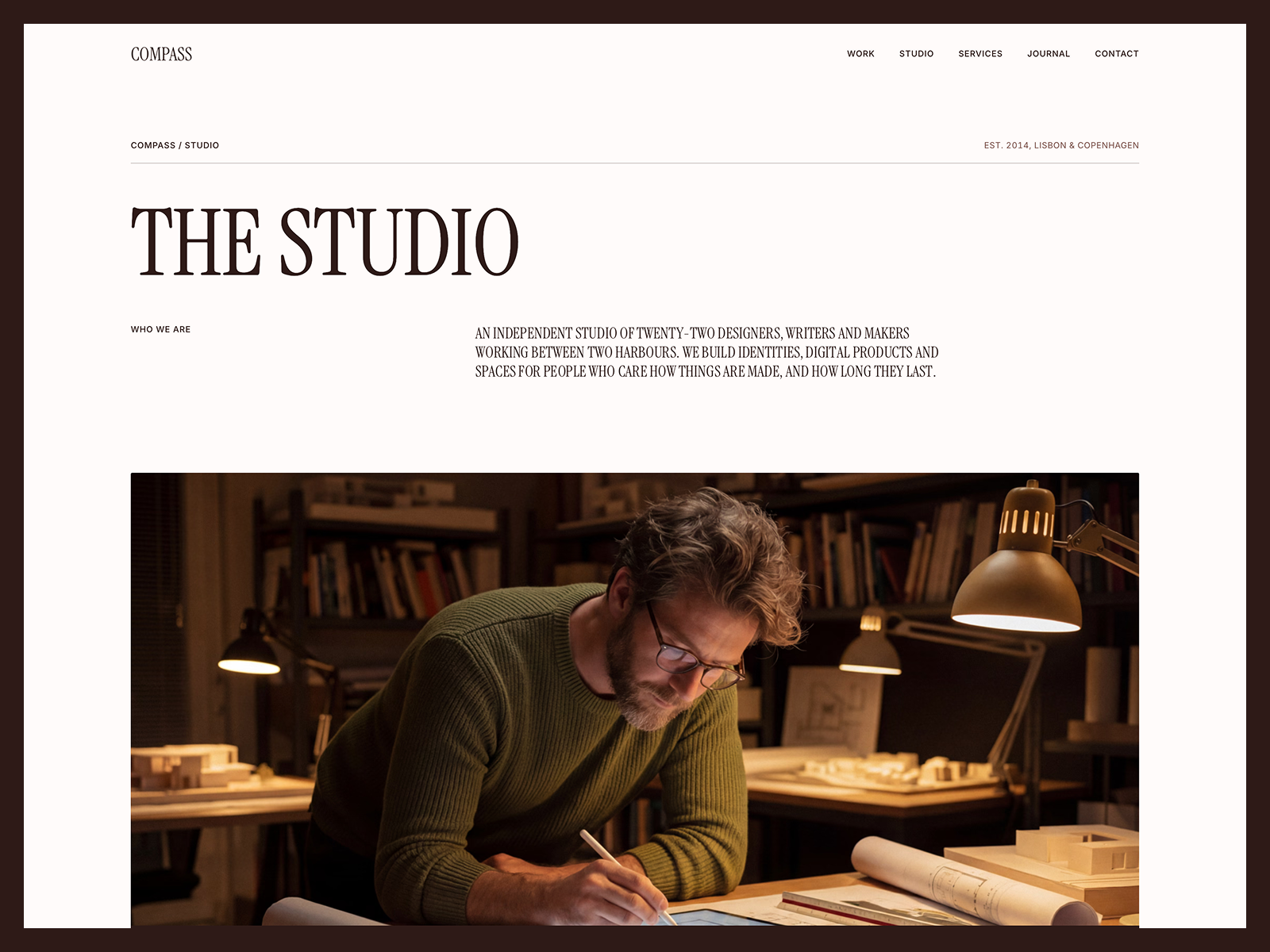
- Compass uses five collections: Projects, Journal, Team, Open Roles and Services. Its listing notes that publishing a new case study updates every list, filter and detail page on its own. It is a good model for a studio.
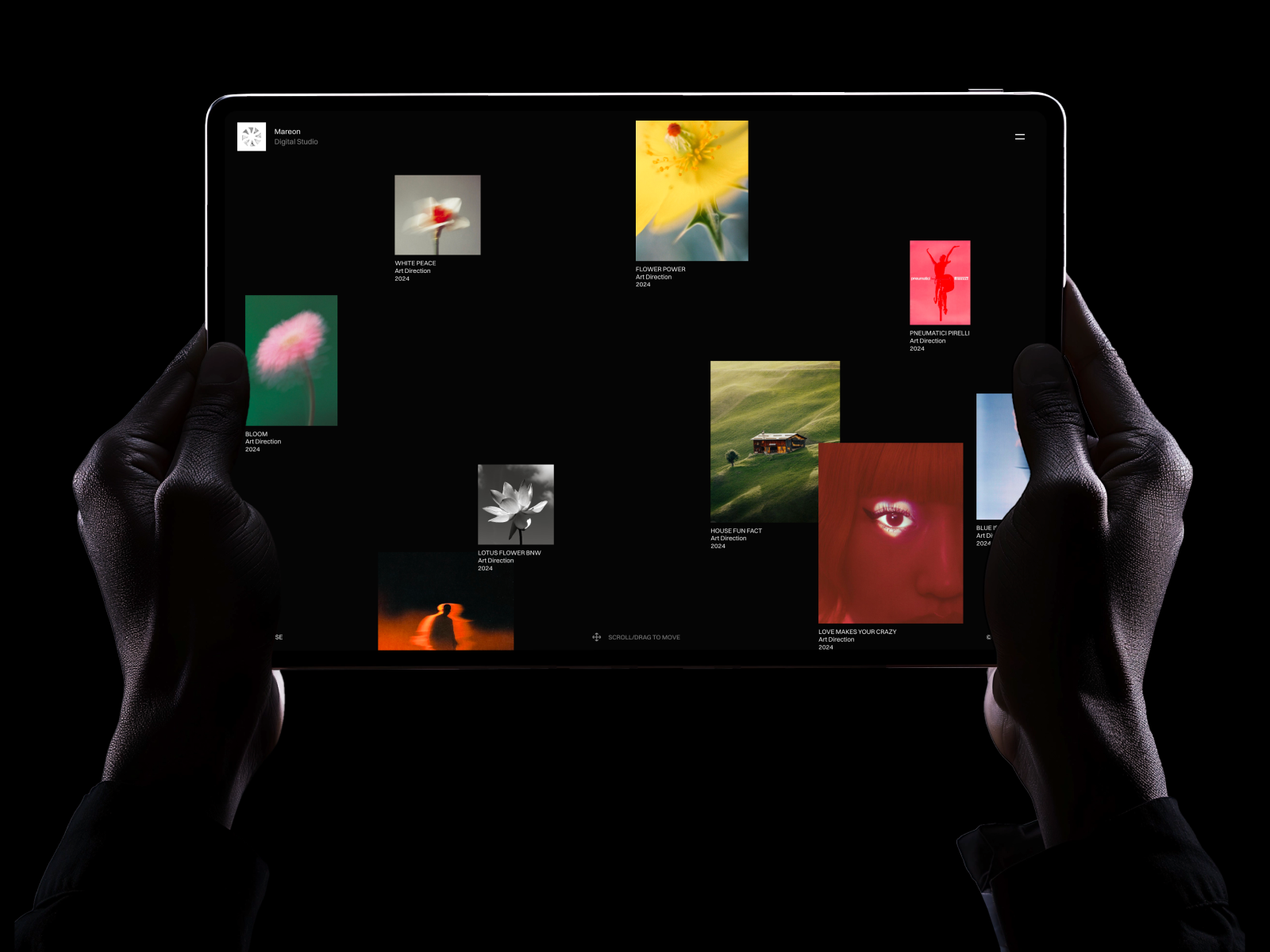
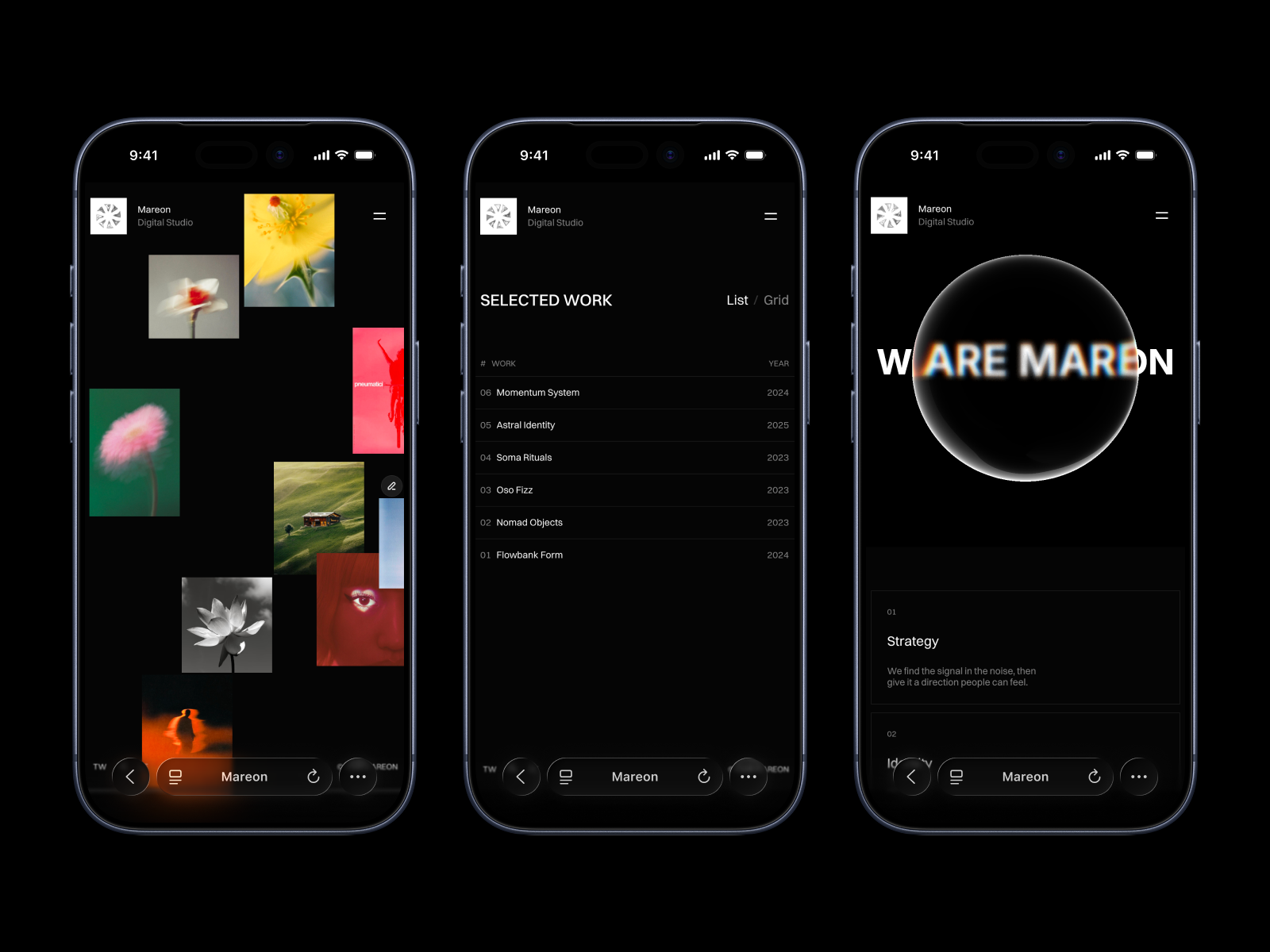
- Mareon keeps it to a project collection with titles, clients, dates, descriptions, roles, images and video covers, plus list and grid views. See the Mareon listing. It is a good model for a solo portfolio on Basic.
- Hansler shows an advanced pattern. Its feed loops over a Media collection where every image or video is its own item with a reference back to its project. See the Hansler listing. Use this pattern when you want one project to fill several tiles in the gallery.
Ready to put it on a live site? Follow my step-by-step Framer portfolio guide, or browse the Agency templates for studio setups.
FAQ
Is the Framer CMS free?
The Free plan FAQ on Framer’s pricing page says free projects include access to 10 CMS collections. To publish on a custom domain, Basic includes 2 collections and Pro includes 10.
How do I make a page for each CMS item in Framer?
Open Pages, choose New CMS Page, select your collection and choose Detail Page. Bind each layer to a field with Set Variable, and Framer creates one page per item.
Can I add videos to Framer CMS items?
Yes. Use a text field for a YouTube, Vimeo or MP4 URL, or a File field to upload an MP4 directly to the CMS.
How many CMS items can a Framer portfolio have?
Basic includes 1,000 items and Pro includes 2,500, which add-ons can raise to 40,000. A portfolio rarely needs more than a few dozen.